

Workshop
Website
The signed-in website at your SITE_HOST, where you watch and download footage, check recording health, manage models and API keys, and use Workshop.
The website is a React app served by the dashboard Worker (skyvision-dashboard, in package/dashboard/) at your SITE_HOST. It has four areas:
| Area | Where | For |
|---|---|---|
| Recordings | Main navigation (the default) | Watching, searching and downloading footage |
| Activity | Main navigation | Coverage and storage over the last 40 days |
| Workshop | Main navigation (?view=workshop) |
Workflows, runs, buckets, datasets and the model library |
| API access | Account menu | API keys and the API reference |
Sign-in
Cloudflare Access protects the whole SITE_HOST; your Access policy decides who can sign in. The Worker does not trust the edge alone. For every website request it verifies the Cf-Access-Jwt-Assertion token’s signature, its issuer (ACCESS_TEAM_DOMAIN) and its audience (ACCESS_AUD). The signing keys are fetched from <team>/cdn-cgi/access/certs. A request without a valid token is refused, even one that reached the Worker through a misconfigured route.
- Session expiry. When the Access session expires, a banner reads “Your session has expired. Sign in again to continue.” Choosing Sign in reloads the page through Access.
- Sign out. The account menu’s Sign out goes to
/cdn-cgi/access/logout. - API keys. A request carrying an API key on the website is refused: keys work only under
/v1onAPI_HOST(see API overview).API_HOSTserves no website pages. - Local development. On
localhost, the Worker signs you in asDEV_VIEWER_EMAILinstead. Off localhost that setting has no effect. See Local development.
The header shows Receiving footage while the newest segment was stored less than 3 minutes ago, and No recent footage otherwise. The same check backs the ingest Worker’s status endpoint. Refresh and the light/dark switch sit beside it.
Recordings
The player shows one one-minute recording at a time, with a timeline, and plays the next one when it ends.
- Choosing a day. The date sits above the player. The calendar dims and disables days with no recordings, using real local or UTC day boundaries, including 23- and 25-hour daylight-saving days. Day arrows skip empty days. Latest jumps to the newest footage.
- Local time or UTC. Review starts in local time and can switch to UTC. Activity history is always UTC.
- Find footage lists the day’s recordings as hours that expand into minutes. Go to time takes
19:42:30or digits such as194230. A time with no footage is rejected without changing playback, and a minute-only entry opens that minute’s first footage. - Time range limits browsing, the timeline and continuous playback to any span, for example 19:30–20:30. Filter shows saved recordings only, or exports the listed clips as CSV.
- The timeline follows the playback second. Scale switches between recording, hour and day views. The scrubber snaps to recorded coverage, gaps stay visible, and arrow-key seeking skips them.
- Close inspection:
- zoom with pinch, trackpad or a zoom level, and pan by dragging; an overview thumbnail shows the visible part;
- skip by 1, 5, 10 or 30 seconds;
- loop the last 5 or 10 seconds, or mark a loop with I and O.
- Smooth playback. One adjacent clip is buffered in a second player, so moving to the next minute does not reload. Prefetch is skipped in hidden tabs, on Save-Data and 2G connections, and for clips over 96 MiB.
- Links and restore. The URL holds the camera, date, time zone, clip and second. Reloading restores playback, and a shared link opens the same moment for anyone who can sign in.
- Saving. Saved recordings are bookmarks kept on this device; saving does not keep footage past its 40 days. Download fetches the original MP4 byte for byte. Files stream from the footage store with byte ranges, and the browser may cache a clip for a day.
| Key | Action |
|---|---|
| Space or K | Play or pause |
| ← → or J L | Back or forward by the skip interval |
| I / O, R | Mark loop start and end, toggle the loop |
| [ ] | Previous or next clip |
| M, F | Mute, full screen |
| + − 0 | Zoom in, out, reset |
| Shift + arrows | Pan the enlarged video |
| / | Go to time |
| ? | Show shortcuts |
Activity
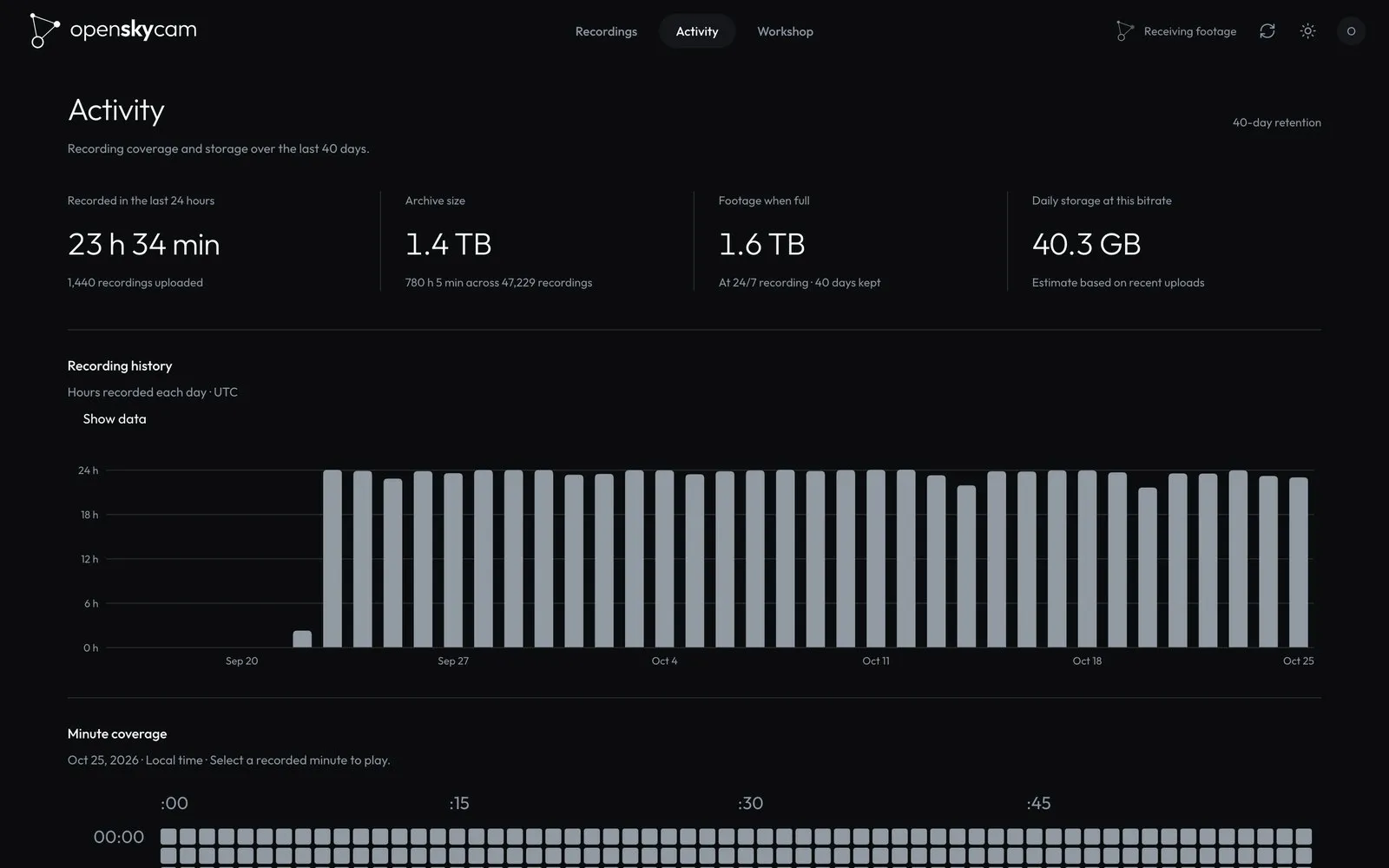
Activity covers the camera’s last 40 days:
- Tiles: recorded in the last 24 hours, archive size, footage when full (the 40-day estimate), and daily storage at the current bitrate.
- Recording history: a daily chart of hours recorded (UTC), with Show data for the numbers.
- Minute coverage: a grid of every minute of the selected day, recorded or missing; select a recorded minute to play it.
The storage estimate takes the bytes per recorded second of the last 24 hours. It multiplies that out to a day and to the full 40 days, so it is meaningful even an hour after recording starts. Activity reads the catalog’s daily totals, not the video files (Catalog).
With more than one camera in CAMERAS, a camera picker appears in the header. Recordings and Activity show one camera at a time.
Workshop
Workshop is where detection happens. Its sidebar has Overview, Buckets, Model library and Runs, plus links back to Recordings, Activity and API access.
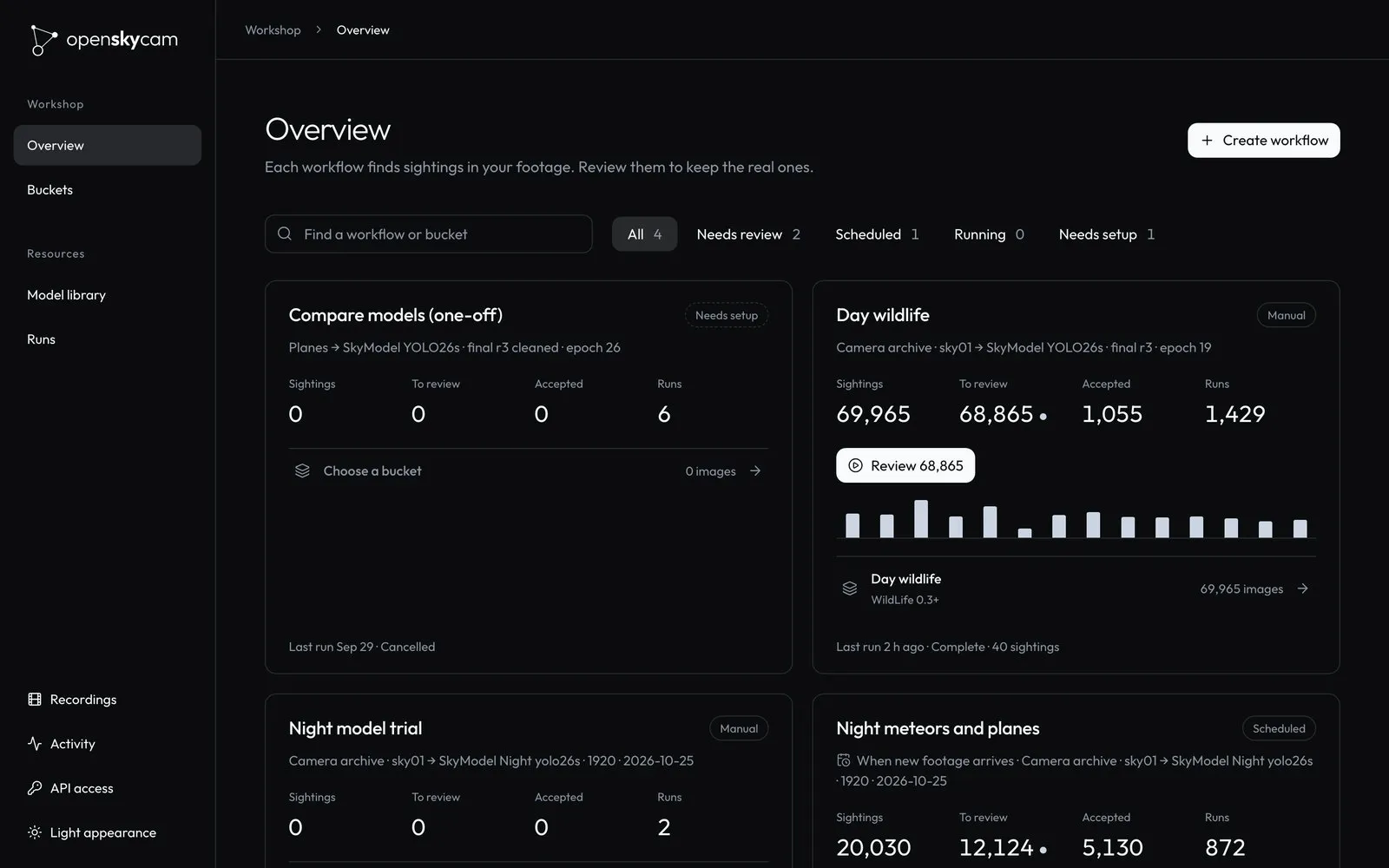
- Workflows: build a graph that samples frames from footage, runs models, decides and routes images to buckets, and runs on a schedule.
- Runs: test and full runs, the queue and live progress.
- Buckets and datasets: review, relabel and save images, and freeze dataset versions.
- Tracking and trajectories: how detections become tracks with a motion class.
Model library
The model library lists every published model version.
- Library. Find a model by name or filter the list. A model’s page has these sections:
- Overview: task, output classes, specifications, required models;
- Evaluations;
- Files: each file with its SHA-256;
- a downloadable model card.
- Test on footage lets you pick a recording to preview, but running a model there is not connected yet; test a model with a Workshop test run.
- Devices. Register a processor device, assign the model versions it should keep, and watch each one report its status: synchronized, waiting, or failed. Each assignment sets a slot, the model version and checkpoint, the input size in pixels, the confidence and IoU thresholds, and the compute device: automatic, Apple GPU, NVIDIA GPU or CPU.
- Connect training. This explains how a training notebook publishes new versions with a “Publish trained models” key.
See Models for publishing, the manifest and device sync.
API access
Open API access from the account menu. It has two tabs.
API keys lists your keys with their scope, cameras, expiry and last use (updated at most every 5 minutes). The signed-in email owns each key; you see only your own. You can create, rename, rotate and revoke keys.
- Limits. Up to 20 keys can be active at once. Expiry is 7, 30 or 90 days, or 1 year.
- The secret (
svk_…) is shown once, at creation or rotation. - Rotating replaces the secret at once and keeps the scope, cameras and expiry. Revoking rejects new requests immediately.
| Purpose | Scope | Can |
|---|---|---|
| Download footage | footage:read |
List and download recordings, dataset manifests and images, for its cameras |
| Agent: MCP and full API | agent |
Use the MCP server for its cameras. With every camera, it can also call every website action under /v1. |
| Publish trained models | models:write |
Upload new model versions. It has no camera access. |
| Run Workshop jobs | workshop:run |
Claim and complete Workshop jobs for one registered device and its cameras |
| Sync device models | models:sync |
Download one device’s assigned models and report readiness. It has no camera access. |
| Run inference | processor:run |
Continuous-inference jobs for one pipeline. Offered only when inference is enabled. |
The last three purposes appear only once a device or pipeline is registered. No key can create, rotate or revoke keys. Key management needs a signed-in browser on this site, and every change must come from the site itself (a same-origin Origin header). For an agent key, the dialog also shows the claude mcp add command for its MCP server (MCP server).
Documentation has Python and cURL examples and an endpoint reference built from /openapi.json. /docs opens this tab.
Phones
The website is built for phones as well as desktops:
- Portrait. One compact header holds the menu, the date and Latest. Player controls float over the video in a small island. Browse recordings opens a bottom sheet with dates, hours, exact time and filters.
- Landscape. The video fills the screen, with a fading header and a smaller floating control island that respects notches. Rotating keeps the recording, position, zoom and pan.
- Control behaviour. The controls minimize after 5 seconds of inactivity or while zooming, and can be dragged anywhere on the video. The position and visibility preference are saved on the device.
- Desktop full screen. It uses the same floating controls, with a Browse panel inside full screen.
Workshop and the model library also work on a phone. On narrow screens the workflow editor’s settings panel overlays the right edge of the canvas and closes to give it back.